Key takeaways
- A factory-calibrated monitor with a hardware calibration feature suits professionals who print or deliver color-critical work, a wide-gamut IPS monitor without hardware calibration suits serious hobbyists and semi-professionals, and a high-resolution general-purpose IPS monitor suits beginners who mainly edit for…
A factory-calibrated monitor with a hardware calibration feature suits professionals who print or deliver color-critical work, a wide-gamut IPS monitor without hardware calibration suits serious hobbyists and semi-professionals, and a high-resolution general-purpose IPS monitor suits beginners who mainly edit for web or social sharing. The deciding factors are color gamut coverage, factory calibration accuracy, and whether the final output is print, client delivery, or screen-only viewing.
As an Amazon Associate, we earn from qualifying purchases made through links on this page.
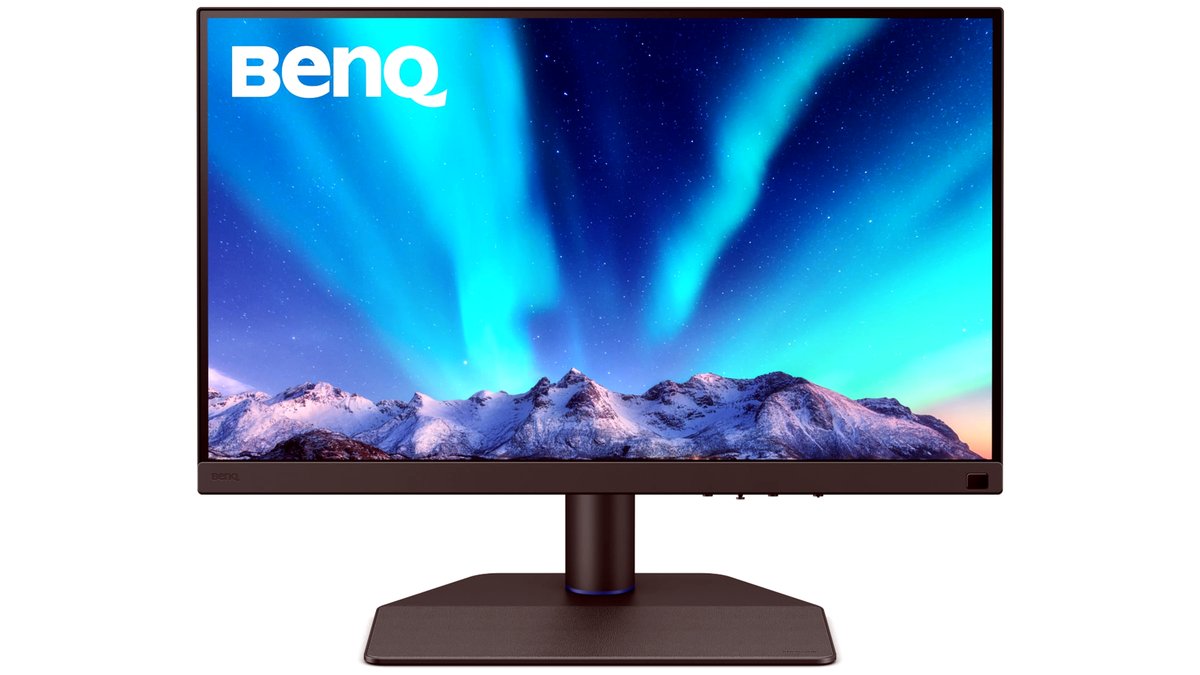
Photo editing monitors are judged on different criteria than gaming or general productivity displays. Refresh rate and response time, which dominate gaming monitor marketing, barely matter here; color accuracy, gamut coverage, uniformity, and consistent brightness across the panel are what actually affect whether edits look right when viewed elsewhere.
What Actually Matters for Photo Work
Color gamut coverage describes how much of a given color space (commonly sRGB, Adobe RGB, or DCI-P3) a panel can display. Photographers delivering web content mainly need strong sRGB coverage, since that’s the standard most browsers and devices assume. Photographers printing their own work or delivering files for print often want strong Adobe RGB coverage too, since that space includes a wider range of printable colors, particularly in greens and some skin tones, than sRGB covers.
Factory calibration and included hardware calibration tools separate professional-tier monitors from general-purpose ones. Panels the maker specifically markets for photo and design work often ship with a calibration report showing measured accuracy (commonly expressed as a Delta E value) and sometimes bundle or support a hardware colorimeter for ongoing recalibration. General-purpose monitors, even good ones, typically aren’t individually calibrated at the factory to the same standard.
Panel uniformity matters more for photo editing than most other use cases, since uneven brightness or color across the screen can make flat areas of sky or skin tone look inconsistent in a way that doesn’t reflect the actual file. Reviewers who test monitors for this purpose often check uniformity across different screen zones specifically, something general tech reviews sometimes skip.
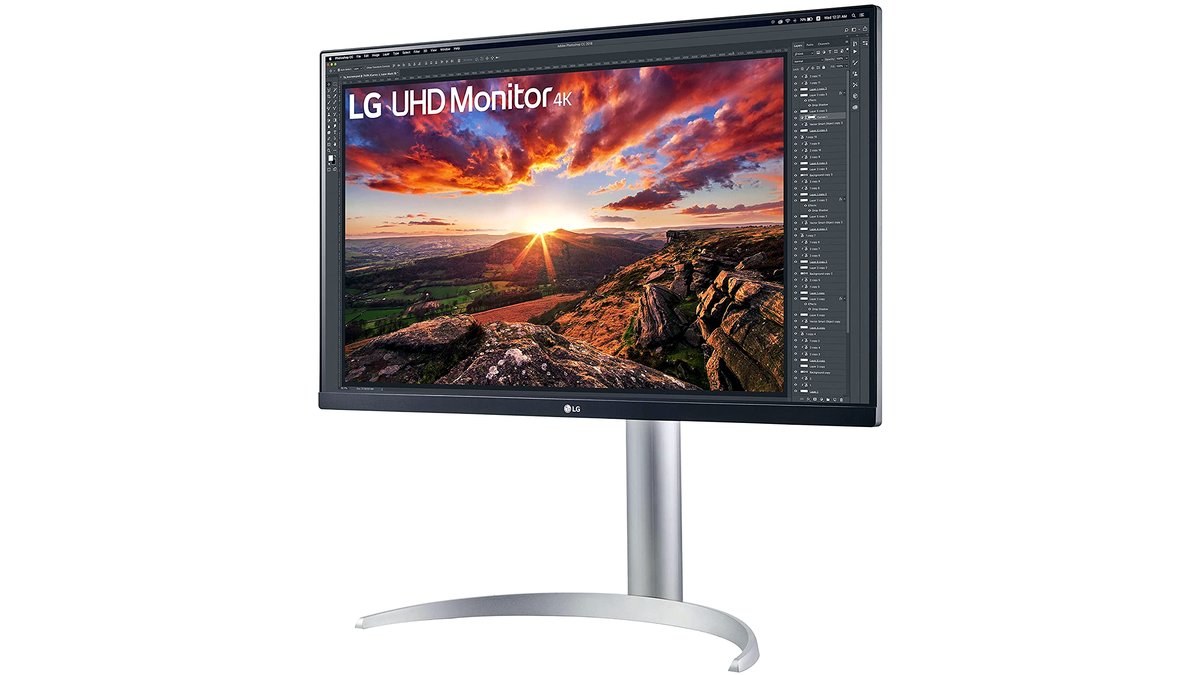
At a Glance Comparison
| Tier | Best For | Key Stated Specs | Limits |
|---|---|---|---|
| Professional hardware-calibrated (e.g., BenQ’s photographer-focused SW line, Eizo’s ColorEdge line) | Print delivery, color-critical client work | Wide Adobe RGB and sRGB coverage; factory calibration report; hardware calibration support | Higher cost; often lower refresh rate, which doesn’t matter for this use but rules out dual-purpose gaming use |
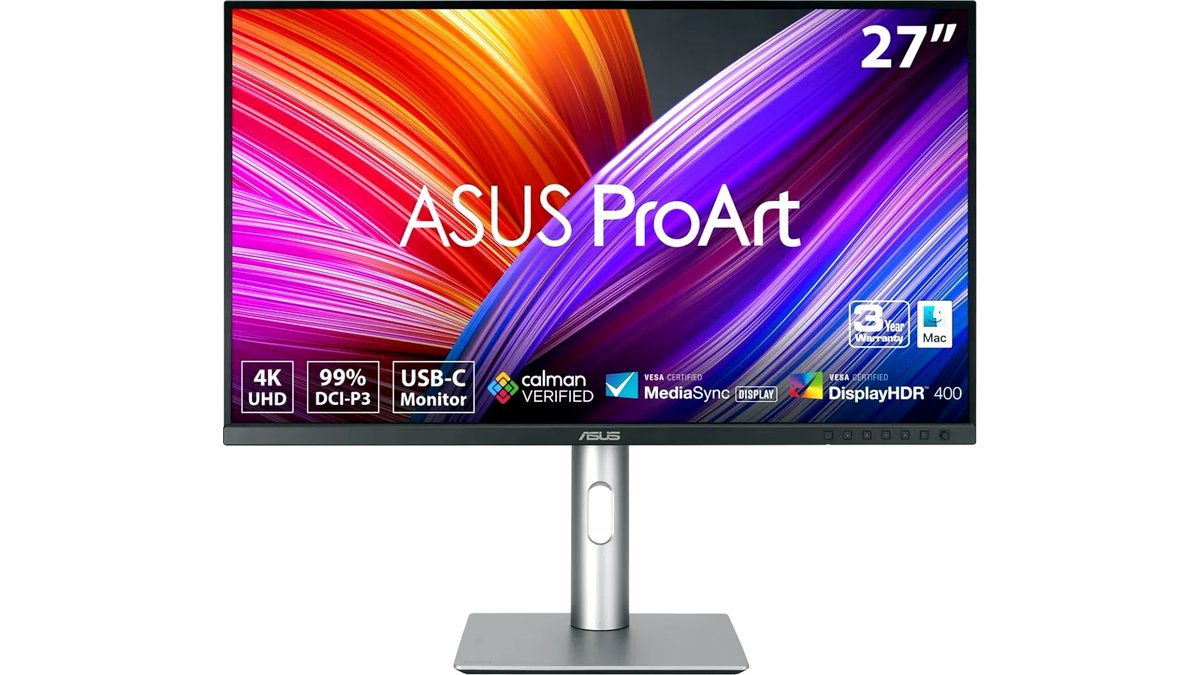
| Wide-gamut IPS without hardware calibration (e.g., ASUS ProArt line) | Serious hobbyists, semi-pro work | Strong sRGB and partial Adobe RGB/DCI-P3 coverage; software calibration supported | No factory calibration report as standard; accuracy varies more unit to unit |
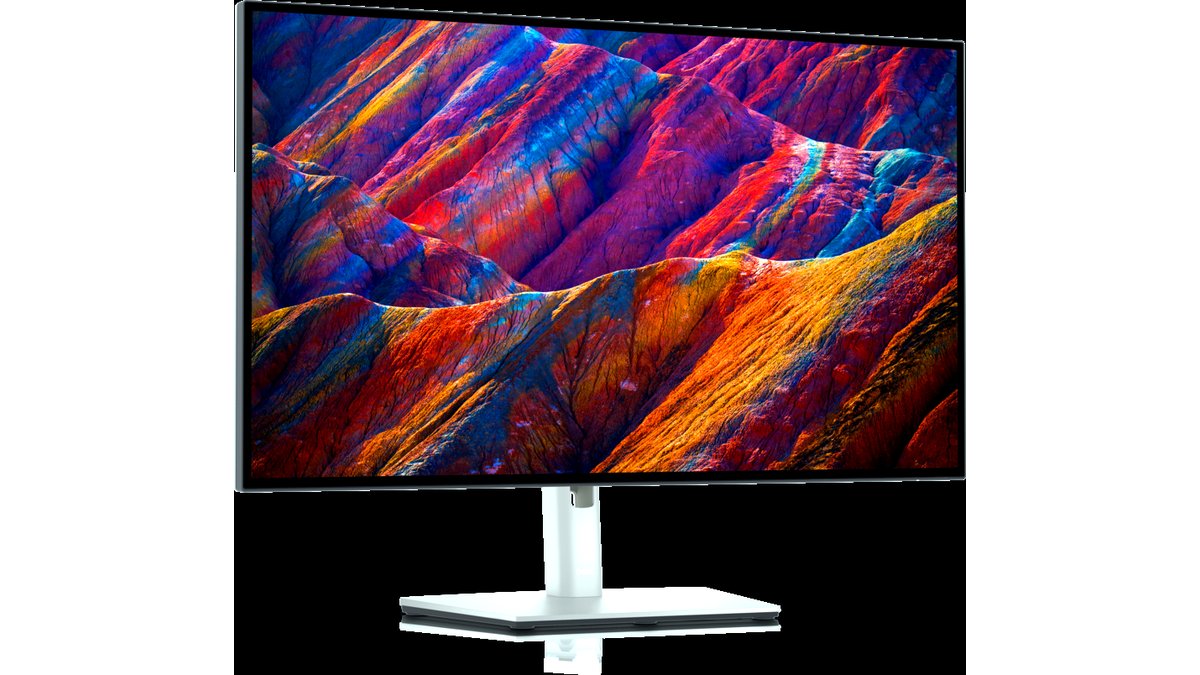
| General-purpose high-resolution IPS (e.g., Dell’s UltraSharp line) | Everyday use plus casual photo editing | Good sRGB coverage; sharp resolution; often includes USB-C/docking features | Weaker Adobe RGB/DCI-P3 coverage; not factory-calibrated to photo-industry standards |
| Budget IPS monitors | Beginners editing mainly for web/social use | Basic sRGB coverage; lower price point | Color accuracy and uniformity less consistent; no calibration tools included |
Fit and Compatibility Notes
Screen size and resolution should scale together: a 27-inch panel at 4K resolution gives a pixel density well suited to detailed retouching work, while the same resolution on a much larger panel spreads pixels thinner and can make fine detail work less precise unless viewed closer. Check the video input and bandwidth needed for the resolution and refresh combination intended, since older HDMI or DisplayPort versions cap the resolution/refresh combinations available, particularly at 4K. For laptop-based editing workflows, confirm the external monitor supports the laptop’s output over USB-C or the available port type, and check whether USB-C power delivery is needed to simplify cabling, since not all monitors in this category include it.
Pick This If…
| Situation | Recommended Tier |
|---|---|
| Delivering client work or printing professionally | Professional hardware-calibrated monitor |
| Serious hobbyist wanting better-than-average accuracy without professional pricing | Wide-gamut IPS without hardware calibration |
| Editing mainly for web, social media, or personal use | General-purpose high-resolution IPS |
| Starting out and budget is the main constraint | Budget IPS monitor, paired with a basic software calibration tool if possible |
Calibration and Setup Notes
Even a well-reviewed monitor benefits from periodic calibration with a hardware colorimeter, since panel color shifts gradually over time and factory calibration alone doesn’t account for that drift. Reviewers and color-management guides generally recommend recalibrating every few weeks to a couple of months for serious work, more often for professional print work than for casual editing. Ambient lighting in the room also affects perceived color accuracy regardless of the monitor’s own specs, so a controlled, consistent lighting setup (avoiding strong daylight or colored light sources near the screen) is a meaningful part of getting reliable results, independent of which monitor is chosen.
Stand, Ergonomics, and Multi-Monitor Setups
A monitor’s stand and mounting options matter more for long editing sessions than they might initially seem, since height, tilt, and swivel adjustment reduce neck and back strain over hours of detailed retouching work. Monitors aimed at creative professionals often include a more adjustable stand than general-purpose displays, and most support standard VESA mounting if a separate monitor arm is preferred over the included stand. For editors who like comparing a full image against a zoomed-in detail view simultaneously, a second monitor, even a lower-cost general-purpose one used purely for panels, histograms, and tool palettes, can be more useful than investing everything into a single very large primary display.
Matte versus glossy screen coatings are another practical consideration separate from color accuracy; matte coatings reduce glare and reflections in rooms with windows or overhead lighting, which matters for consistent viewing conditions during long sessions, while glossy coatings can look punchier in controlled lighting but show more reflections in a brighter room.
A Few Alternatives Worth Comparing
OLED monitors offer excellent per-pixel contrast and are increasingly marketed for creative work, though reviewers note some models can show pixel-level color shift at extreme viewing angles compared to top-tier IPS panels, which is worth weighing for critical color work. Portable USB-C monitors with claimed wide-gamut coverage are an option for photographers who travel and edit on location, though their accuracy and uniformity are generally a step below desktop-class panels in the same price range. A properly calibrated laptop screen, while rarely as accurate as a dedicated external monitor, can be a reasonable interim solution with disciplined calibration habits until a dedicated monitor is added to the workflow.
Budgeting the Full Setup, Not Just the Panel
A monitor’s own price is only part of a properly color-managed editing setup; a hardware colorimeter for periodic recalibration, suitable ambient lighting, and sometimes a monitor hood to block stray light are all part of getting consistent, reliable results over time. Buyers stepping up from a laptop screen to a dedicated external monitor for the first time often notice the biggest improvement not from any single spec but from the combination of a larger, more accurate panel paired with disciplined calibration habits. Treating the monitor as one part of a broader color-management workflow, rather than a single purchase that solves accuracy on its own, tends to produce more consistent results across different output destinations, whether that’s web, print, or client delivery.
Frequently Asked Questions
Do I need Adobe RGB coverage if I only share photos online?
Not really; most web and social platforms display in the sRGB color space, so strong sRGB coverage matters more than Adobe RGB for that use case. Adobe RGB becomes more relevant once printing or delivering files meant for print-based color spaces is part of the workflow.
What is Delta E and why does it matter for photo monitors?
Delta E is a measurement of how far a displayed color deviates from its target value, with lower numbers meaning better accuracy; the maker often states an average Delta E figure for factory-calibrated monitors. A Delta E under 2 is generally considered very accurate for professional work, though exact thresholds vary by use case and source.
Is a higher refresh rate useful for photo editing?
Generally no; refresh rate mainly affects motion smoothness, which isn’t relevant to viewing and editing static images. Photo-focused monitors often have standard 60Hz refresh rates, and that’s not a drawback for this specific use case.
How often should a photo editing monitor be recalibrated?
Guidance varies, but many color-management resources suggest every few weeks to a couple of months for serious or professional work, since panel characteristics shift gradually over time. Less critical, casual editing can usually tolerate a longer interval between calibrations.
Can a TV be used instead of a dedicated monitor for photo editing?
It’s possible but not ideal; TVs are generally tuned for vivid, punchy colors rather than accuracy, and most lack the calibration options and uniform panel quality that photo-focused monitors offer. A dedicated monitor remains the better choice when color accuracy matters for the final output.
Does screen size matter more than resolution for detailed retouching?
Both matter together; what counts most is pixel density, meaning how many pixels are packed into the visible screen area, since that determines how much fine detail is visible without zooming. A smaller screen at high resolution can actually show finer detail more clearly than a larger screen at the same resolution, viewed at a typical desk distance.