Key takeaways
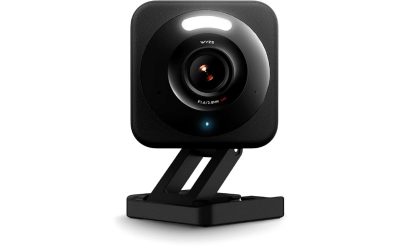
- Remote workers who mainly need clear video for calls on a plain background are best served by a basic fixed-focus 1080p webcam in this budget tier, while anyone streaming, recording tutorials, or working in a dim room needs to prioritize…
Remote workers who mainly need clear video for calls on a plain background are best served by a basic fixed-focus 1080p webcam in this budget tier, while anyone streaming, recording tutorials, or working in a dim room needs to prioritize a model with autofocus and a wider aperture lens even if resolution stays the same. At this budget cap, the tier is defined more by what’s left out (no 4K, limited low-light performance, basic or no software features) than by a single standout spec.
As an Amazon Associate, we earn from qualifying purchases made through links on this page.
What to Look For in a Budget Webcam
Resolution and Frame Rate
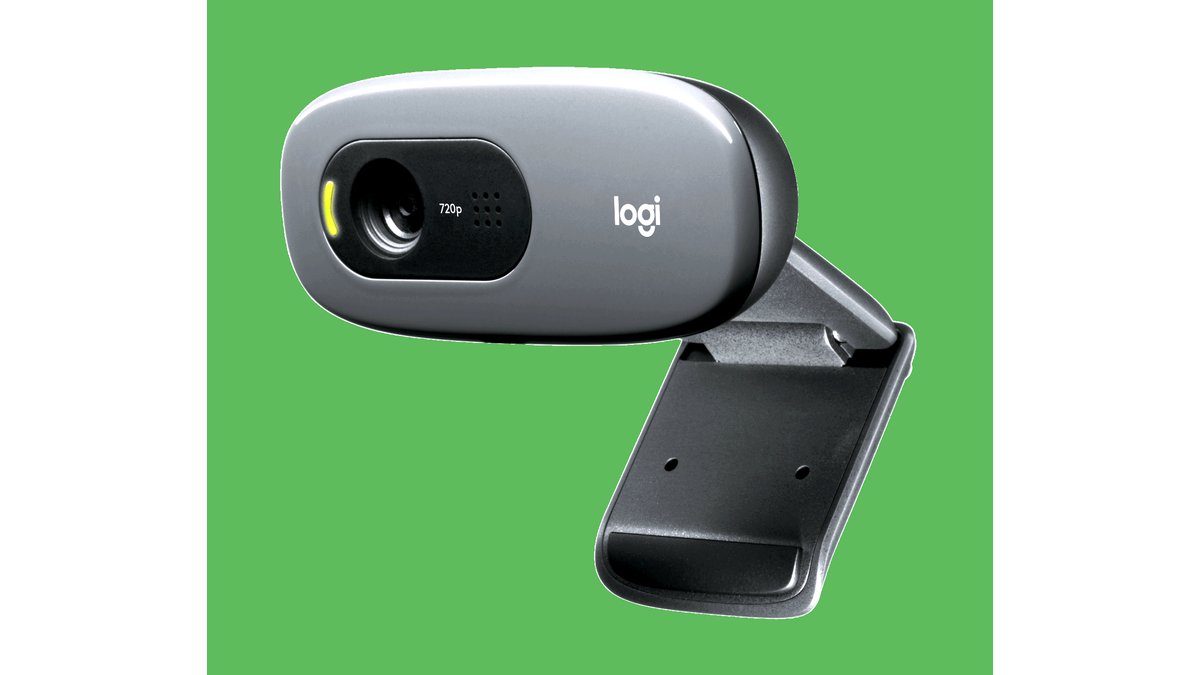
1080p at 30fps is the realistic ceiling in this price range, and that’s sufficient for video calls and basic recording. Some budget models still ship at 720p, which is noticeably softer on a modern monitor, so checking the stated resolution before buying matters more than brand at this price.
Low-Light Performance
Budget webcams generally use smaller sensors that struggle in dim rooms, producing grainy or dark footage without strong external lighting. A model with a wider aperture (a lower f-stop number) stated in its specs tends to handle moderate indoor lighting better than one without that detail listed.
Autofocus vs. Fixed Focus
Fixed-focus webcams are cheaper and fine if you sit at a consistent distance from the camera, but they can look soft if you lean in or shift position. Autofocus models, even basic ones, adjust automatically and are worth prioritizing if you move around during calls.
Microphone Quality
Most webcams in this tier include a basic built-in microphone adequate for casual calls but prone to picking up room echo and background noise. Anyone recording content for public sharing should plan on a separate microphone regardless of which webcam is chosen.
Mounting and Field of View
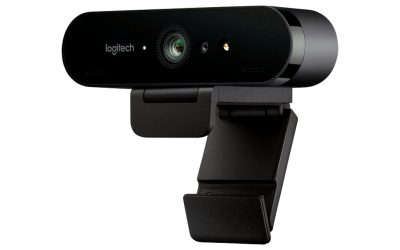
A clip that fits both laptop lids and external monitors offers more flexibility than one designed for a single mount type. Field of view (how wide the frame is) affects whether the shot shows just your face or includes more of the background and desk setup.
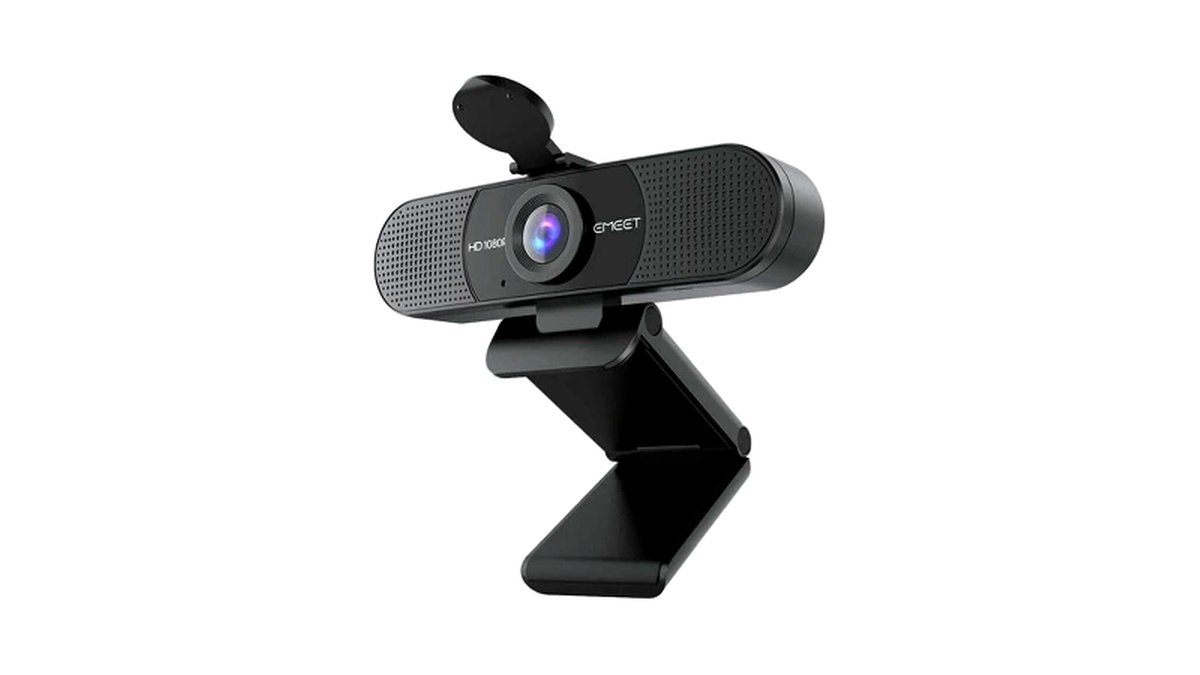
At a Glance: Budget Webcam Categories
| Category | Best For | Key Stated Specs | Limits |
|---|---|---|---|
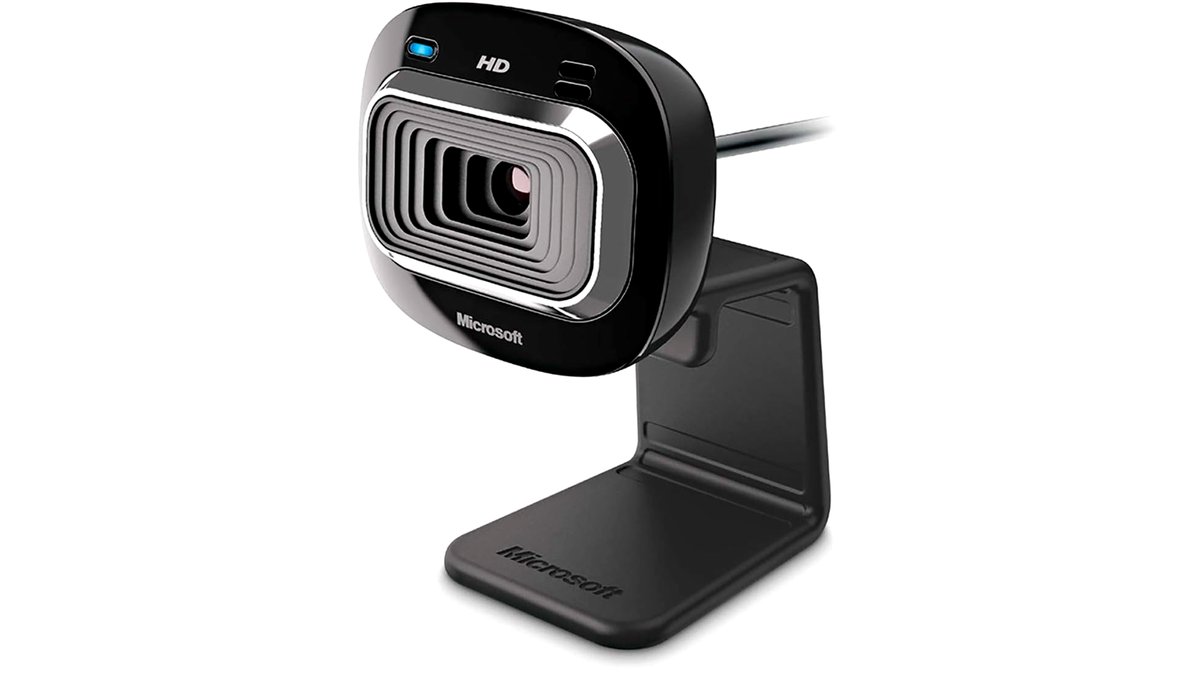
| Basic fixed-focus 1080p | Video calls at a consistent desk distance | 1080p/30fps, fixed focus, built-in mic | Soft image if you move closer or farther from camera |
| Autofocus 1080p | Calls with frequent movement, casual recording | 1080p/30fps, autofocus lens | Autofocus can hunt or lag in low light |
| Wide-aperture low-light model | Dim home offices without extra lighting | Wider stated aperture, 1080p | Still limited compared to pricier sensors |
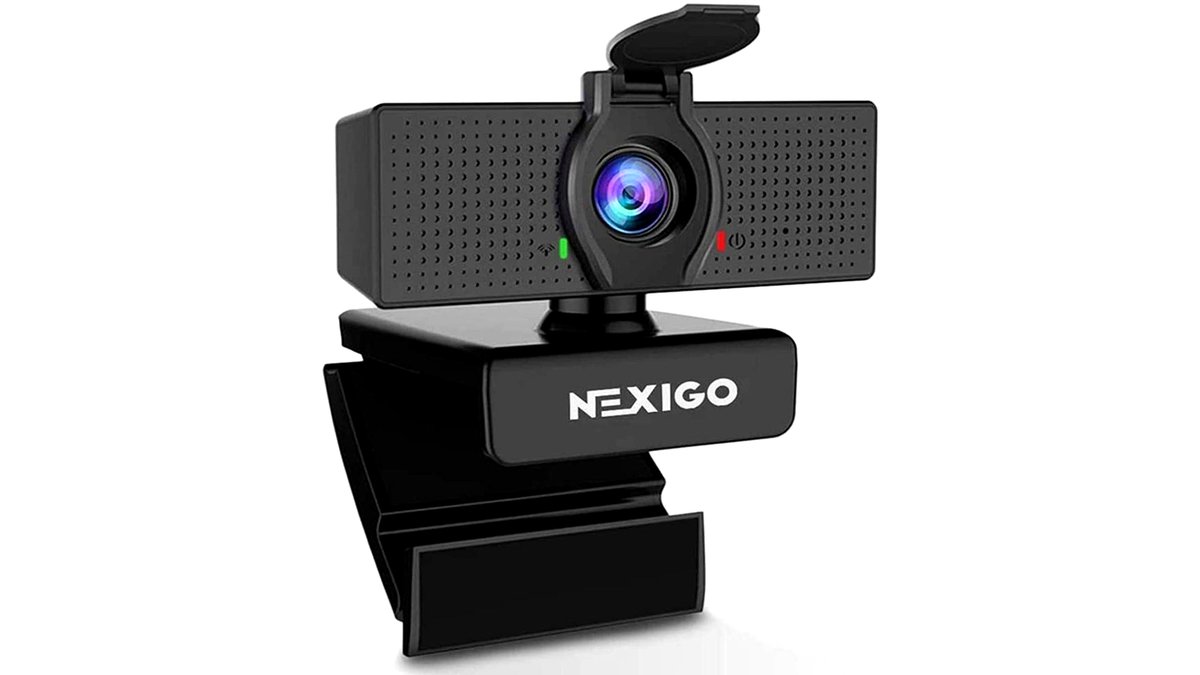
| Privacy-cover equipped model | Shared or security-conscious workspaces | Built-in sliding lens cover, 1080p | Cover adds bulk, no change to image quality |
Fit and Compatibility Notes
Check that the webcam connects via standard USB-A or USB-C depending on your laptop’s available ports, since budget models don’t always include an adapter. Most work natively with major video call platforms without extra drivers, but a few niche conferencing apps may need the manufacturer’s companion software for full feature access (like background blur), which isn’t always available at this price point.
Pick X If…
| If you… | Choose |
|---|---|
| Sit still at a consistent distance for calls | Basic fixed-focus 1080p webcam |
| Move around or lean in frequently during calls | Autofocus 1080p webcam |
| Work in a dim room without strong lighting | Wide-aperture low-light model |
| Share a workspace and want visual privacy assurance | Privacy-cover equipped model |
| Mainly need better audio, not video | A basic webcam paired with a separate budget microphone |
Getting the Most From a Budget Webcam
Lighting makes a bigger difference at this price point than any other single factor; placing a lamp or ring light in front of you rather than relying on an overhead room light noticeably improves image quality even on a basic sensor. Positioning the webcam at eye level rather than angled up from a low laptop position also improves how flattering and clear the shot looks, regardless of the camera’s actual spec sheet.
Alternatives to Consider
Many modern laptops already include a built-in webcam that performs comparably to this budget tier, so checking your laptop’s existing camera quality before buying a separate one can save the purchase entirely. Using a smartphone as a webcam through a dedicated app is another no-extra-cost option for occasional calls, though it requires a mount and a stable connection method. For users who decide image quality matters more than this budget allows, saving toward a mid-range model with a larger sensor and genuine autofocus may be worth the wait rather than buying twice.
Software and Driver Considerations
Most budget webcams rely on standard UVC drivers built into Windows and macOS, meaning they work immediately without installing anything, but accessing extra features like virtual backgrounds, framing adjustments, or exposure control typically requires downloading the manufacturer’s companion app. These apps vary widely in quality at this price point; some are polished, while others are clunky or only run on one operating system, so checking recent user feedback on the software specifically, separate from the hardware itself, is worth doing before assuming a feature will work as advertised.
Keeping the webcam’s firmware and companion app updated occasionally resolves compatibility issues that crop up after an operating system update changes how it handles USB video devices. If a budget webcam stops being recognized after a system update, checking for an app or firmware update before assuming the hardware has failed is a reasonable first troubleshooting step.
It’s also worth testing the webcam in the specific conferencing or recording app you’ll actually use before relying on it for an important call, since some apps handle webcam permissions or resolution settings differently than the operating system’s default camera app. A quick test call with a friend or a solo recording check can surface issues like an upside-down image or a resolution mismatch that are simple to fix once noticed but awkward to discover mid-meeting.
Frequently Asked Questions
Is a budget webcam good enough for professional video calls?
For most office and remote-work video calls, a 1080p budget webcam with decent lighting is perfectly adequate, since call quality depends heavily on lighting and framing rather than raw camera specs. Professional settings needing sharper detail (demos, presentations) may benefit from a higher tier.
Why does my budget webcam look grainy in the evening?
Smaller sensors in budget webcams need more available light to produce a clean image, and evening indoor lighting is often too dim for them to compensate well. Adding a front-facing light source is the most effective and affordable fix.
Do budget webcams work with Mac and Windows equally?
Most USB webcams in this tier use standard UVC (USB Video Class) drivers that work natively on both Mac and Windows without extra software. Some brand-specific features like virtual backgrounds may only be supported through a Windows-only companion app, so check compatibility if those features matter.
Should I buy a separate microphone instead of relying on the webcam’s built-in mic?
If you only use the webcam for casual calls, the built-in mic is usually sufficient; for recording content meant for a wider audience, a separate microphone noticeably improves clarity and reduces background noise pickup. Built-in webcam mics also tend to pick up more desk and keyboard noise since they sit close to the hands.
Can I use a budget webcam for game streaming?
Basic budget webcams can work for casual streaming but tend to show more lag and softness in fast-moving scenes compared to webcams designed specifically for higher frame rates. Checking the stated frame rate and autofocus speed matters more for streaming use than for general video calls.
How long do budget webcams typically last?
Build quality varies, but basic webcams used a few hours daily for calls commonly last several years before the lens, mount, or cable shows wear. Keeping the USB cable from excessive bending and using the built-in privacy cover (if included) when not in use helps extend its working life.