Key takeaways
- Streamers who want a clean face-cam overlay without fuss are best served by a 1080p/60fps webcam with reliable background removal, while anyone building a higher-production stream with scene transitions and multiple camera angles needs a model supporting 4K capture that…
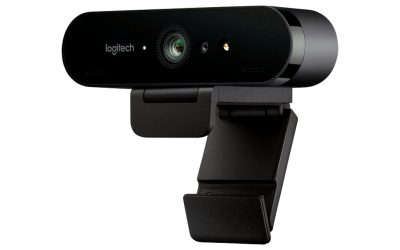
Streamers who want a clean face-cam overlay without fuss are best served by a 1080p/60fps webcam with reliable background removal, while anyone building a higher-production stream with scene transitions and multiple camera angles needs a model supporting 4K capture that can be downscaled for cropping flexibility. Game streaming puts different demands on a webcam than video calls do, since frame rate smoothness and background separation matter more than they do for a simple work call.
As an Amazon Associate, we earn from qualifying purchases made through links on this page.
What to Look For in a Streaming Webcam
Frame Rate at Your Target Resolution
A webcam that only hits 30fps at 1080p will look noticeably less smooth than one rated for 60fps at the same resolution, and motion smoothness matters more on a stream than in a still photo. Check the frame rate specifically at the resolution you plan to actually stream at, since many webcams only hit their highest frame rate at a lower resolution.
Low-Light Performance
Streaming setups often involve dim ambient lighting from monitor glow and RGB accessories rather than bright room lighting, so a sensor with good low-light handling or a wider aperture avoids a grainy face-cam. Pairing any webcam with a small key light still makes a bigger difference than sensor specs alone.
Background Removal and Chroma Key Compatibility
Software-based background removal (no green screen needed) works reasonably well on simpler webcams but can struggle with hair detail or fast movement; a physical green screen paired with chroma keying in streaming software gives cleaner results regardless of webcam quality. Check whether your streaming software’s background removal needs a specific webcam feature or works at the software level independent of hardware.
Field of View and Zoom
A wider field of view suits streamers who want to show more of their desk setup, keyboard, or a second monitor, while a narrower field of view with digital zoom keeps focus tightly on the face. Some webcams let you adjust this in software, which adds flexibility without needing to reposition the camera physically.
Mounting Flexibility
A webcam that mounts on a separate small tripod or monitor arm, rather than only clipping to a laptop lid, gives more control over camera angle and height relative to a multi-monitor streaming setup. This matters more for streamers than for typical video-call users since camera positioning affects the on-stream framing directly.
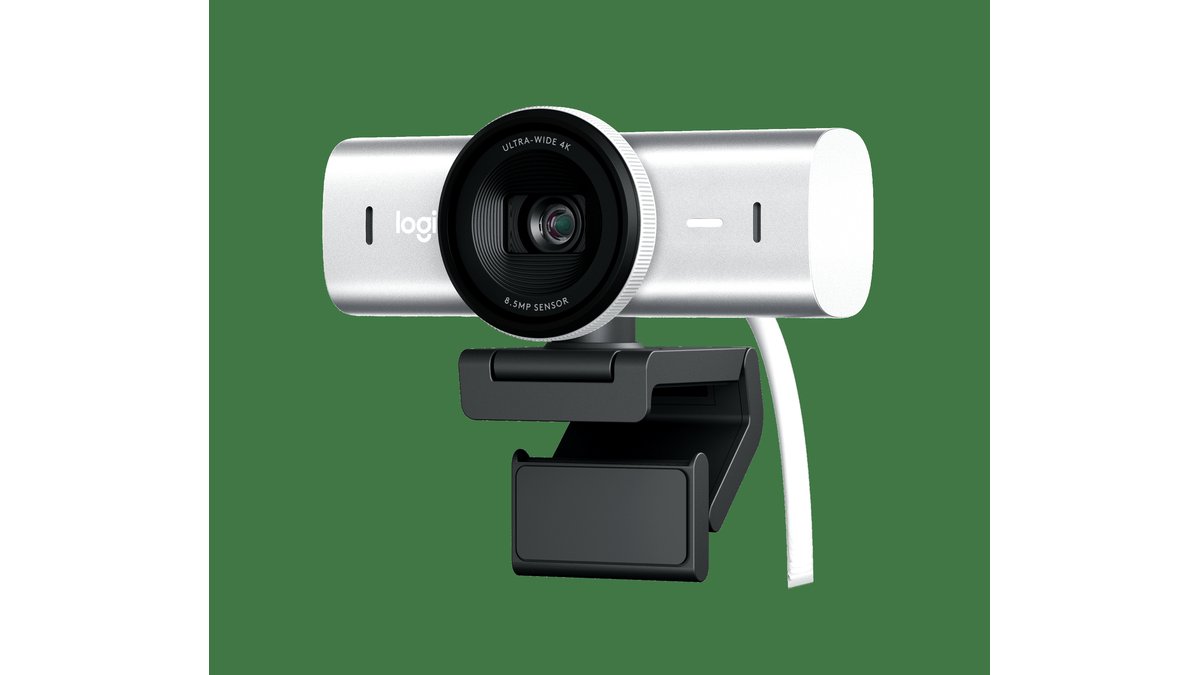
At a Glance: Streaming Webcam Categories
| Category | Best For | Key Stated Specs | Limits |
|---|---|---|---|
| 1080p/60fps standard streaming webcam | Most streamers wanting smooth, clean face-cam | 1080p at 60fps, autofocus, background removal software | Lower max resolution than 4K-capable models |
| 4K capture webcam | High-production streams with cropping/zoom flexibility | 4K resolution (often at lower fps), downscale-friendly for 1080p crop | 4K typically caps at a lower frame rate than 1080p mode |
| Low-light optimized webcam | Dim room or night streaming setups | Wider stated aperture, larger sensor for the price tier | Often costs more than standard 1080p models |
| Wide-FOV webcam | Streamers showing desk setup or multiple monitors | Wider field of view, often with adjustable crop | Can show unwanted background clutter if not framed carefully |
Fit and Compatibility Notes
Confirm the webcam works natively with your streaming software (OBS, Streamlabs, or similar) without requiring a proprietary driver that limits frame rate or resolution options. USB bandwidth matters too: running a high-resolution webcam alongside a capture card or multiple USB peripherals on the same hub can cause frame drops, so plugging the webcam into its own direct USB port is a simple fix worth trying first if performance issues show up.
Pick X If…
| If you… | Choose |
|---|---|
| Want smooth, reliable face-cam without extra production work | 1080p/60fps standard streaming webcam |
| Plan to crop and zoom in post or during scene switches | 4K capture webcam |
| Stream primarily at night or in a dim room | Low-light optimized webcam |
| Want to show your full desk and monitor setup | Wide-FOV webcam |
| Already own a DSLR or mirrorless camera | A capture card to use that camera as a webcam instead |
Lighting and Setup Tips
A small key light positioned slightly above and in front of your face improves webcam image quality more reliably than upgrading the camera itself in most budget and mid-range tiers. Positioning the webcam at eye level, rather than looking down from a monitor-mounted angle, generally looks more natural on stream and avoids an unflattering angle. If using software background removal, a plain, high-contrast background behind you (different in color and brightness from your clothing and hair) improves how cleanly the software can separate you from the background.
Alternatives to Consider
A capture card paired with an existing DSLR or mirrorless camera generally produces noticeably better image quality than any dedicated webcam, since camera sensors are larger and lenses are interchangeable, though this setup costs more and takes more effort to configure. A physical green screen combined with a basic webcam and software chroma keying can outperform background removal software paired with a pricier webcam, since clean keying depends more on lighting and screen setup than camera specs. For streamers on a tight budget, a laptop’s built-in camera paired with good lighting can still produce an acceptable face-cam while saving the webcam purchase for a later upgrade.
Positioning Within a Streaming Layout
Where the face-cam sits within the overall stream layout affects how the webcam’s field of view and framing should be set, since a small corner overlay can tolerate a tighter crop than a larger face-cam panel placed alongside gameplay. Testing the layout at actual stream resolution, rather than just previewing full-screen in the webcam’s own app, helps catch framing issues before going live, since a face-cam that looks fine full-screen can appear oddly cropped once shrunk into a smaller overlay box.
Running a test stream to a private or unlisted channel before a real broadcast is a practical way to catch frame rate drops, lighting issues, or framing problems without an audience watching the troubleshooting process. This is particularly useful after any change to the streaming PC’s USB layout or software setup, since a webcam that worked fine yesterday can behave differently after an update to capture software or operating system drivers.
Frequently Asked Questions
Do I need 4K resolution for game streaming?
Most viewers watch streams at 1080p or lower due to bandwidth limits on streaming platforms, so 4K capture mainly helps if you plan to crop, zoom, or reframe the shot rather than needing viewers to actually watch in 4K. A solid 1080p/60fps webcam is sufficient for most streaming setups.
Why does my webcam look choppy even though it’s rated for 60fps?
Many webcams only hit their rated frame rate at a specific resolution or with a direct high-bandwidth USB connection, so running it through a hub, at a higher resolution than rated for 60fps, or alongside other demanding USB devices can cause frame drops. Checking the exact resolution/frame rate pairing in the webcam’s specs and using a direct USB port usually resolves this.
Is software background removal good enough, or do I need a green screen?
Software-based removal has improved significantly and works well for most casual streaming, but it can still struggle with fine detail like loose hair or fast hand movement. A physical green screen with proper lighting remains more reliable for high-production streams.
Can I use my phone as a streaming webcam instead?
Yes, several apps let you use a smartphone’s camera as a webcam over USB or Wi-Fi, which often produces better image quality than a budget dedicated webcam due to the phone’s larger sensor. This requires a stable mount and a reliable connection method to avoid dropouts during a stream.
How much does lighting really matter compared to the webcam itself?
Lighting generally has a bigger impact on perceived image quality than webcam specs within the same general price tier, since even a mid-range sensor looks noticeably better with proper front lighting than a pricier one in bad lighting. Prioritizing a basic key light alongside the webcam purchase is a cost-effective improvement.
Do I need a separate microphone if I’m buying a streaming webcam?
Built-in webcam microphones are generally not sufficient for streaming audio quality expectations, since they tend to pick up room echo, keyboard noise, and game audio bleed. A dedicated USB or XLR microphone is a worthwhile separate investment for anyone streaming regularly.