Key takeaways
- Console players capturing gameplay need an external capture card connected via HDMI between the console and the display, since consoles generally cannot record at full quality internally for third-party editing.
- PC players can usually record through built-in or third-party software without extra hardware, but this uses the same graphics card running the game, so a lower-powered PC may see a frame rate drop while recording.
- Match the monitor’s refresh rate to what the gaming PC or console can realistically output in Rocket League’s settings; a 240Hz monitor paired with a system capped at 120 frames per second will not show the full benefit.
- Confirm a capture card’s supported input and output resolutions and frame rates match both the console or PC output and the monitor being used for pass-through, since mismatches can add input lag during live play.
A player tuning in-game camera settings for better awareness needs no extra hardware at all, just time adjusting the sliders in the settings menu, while a player who wants to record, stream, or review those camera settings and matches in sharp detail needs a capture setup built around a fast, reliable monitor and either a dedicated capture card or screen-recording software, which is the buying-guide angle this article focuses on.
“Camera settings” in Rocket League refers to in-game sliders, not a physical camera, and the right values are personal and free to adjust: field of view, distance, height, angle, stiffness, swivel speed, and transition speed all combine to change how much of the field a player sees and how the camera reacts to fast directional changes. Competitive players generally favor a wide field of view and a camera pulled back and angled down for maximum field awareness, while some lower-sensitivity players prefer a tighter, closer setup. None of that costs money to try. Where hardware actually matters is in recording, streaming, or reviewing that gameplay smoothly enough to judge whether a given camera setup is working, and that is where buying decisions come in.
Quick picks at a glance
| Gear type | Best for | Key stated specs | Limits |
|---|---|---|---|
| High refresh rate monitor (144Hz+) | Any competitive player, especially one tuning camera responsiveness | 144Hz to 240Hz+ refresh, low input lag panel | Needs a graphics card capable of matching frame rates to see full benefit |
| External capture card | Recording or streaming from a console, or offloading encoding from a gaming PC | HDMI passthrough, 1080p/4K capture resolution options | Adds setup complexity and another device to power and configure |
| Dedicated streaming/recording software setup | PC players who want to record without extra hardware | Software-based encoding using the PC’s own graphics card | Can reduce in-game frame rate if the PC is not powerful enough |
| Wired gaming controller or mouse | Consistent camera-swivel input precision | Low input latency, programmable sensitivity curves on some models | Wireless versions add slight latency versus wired |
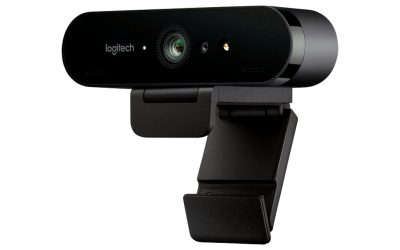
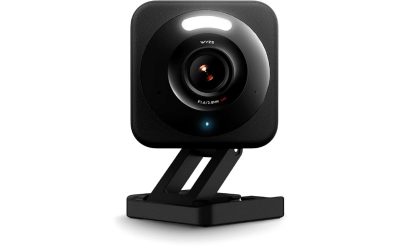
| Webcam for face-cam streaming | Streamers who want a face-cam overlay while reviewing camera settings on stream | 1080p or higher resolution, autofocus | Separate purchase and mounting consideration from the capture setup |
In-game camera settings: what the sliders actually do
Field of view controls how much of the arena is visible at once; a wider setting shows more of the field but makes the ball and car appear smaller. Distance and height control how far back and how high the camera sits behind the car; a camera pulled further back generally improves peripheral awareness at the cost of detail on close-range plays. Angle tilts the camera’s pitch, stiffness controls how rigidly the camera follows the car versus lagging slightly behind during fast turns, and swivel and transition speed control how quickly the camera catches up when changing direction. Most competitive players converge on a similar range of values for field of view, distance, and height, while stiffness and swivel speed come down more to personal reaction-time preference. None of these settings require any purchase; they are adjusted in the client’s camera settings menu and can be changed at any time without restarting a match.
Why hardware still matters here
A wide, pulled-back camera setting is only genuinely useful if the display showing it can keep up with the fast-paced action Rocket League is known for. A monitor with a higher refresh rate reduces motion blur and makes fast camera swivels easier to track visually, which is why competitive players frequently pair their preferred camera settings with a 144Hz or faster monitor rather than a standard 60Hz display. For players who stream or record their matches to review or share their camera setup and gameplay, the recording pipeline matters just as much: a capture card or recording software that drops frames or adds input lag can make a well-tuned camera setup look choppy on the recorded footage even though it feels smooth to the player live.
Fit and compatibility notes
- Console players capturing gameplay need an external capture card connected via HDMI between the console and the display, since consoles generally cannot record at full quality internally for third-party editing.
- PC players can usually record through built-in or third-party software without extra hardware, but this uses the same graphics card running the game, so a lower-powered PC may see a frame rate drop while recording.
- Match the monitor’s refresh rate to what the gaming PC or console can realistically output in Rocket League’s settings; a 240Hz monitor paired with a system capped at 120 frames per second will not show the full benefit.
- Confirm a capture card’s supported input and output resolutions and frame rates match both the console or PC output and the monitor being used for pass-through, since mismatches can add input lag during live play.
Pick this if…
| Situation | Recommended option |
|---|---|
| Want to improve camera responsiveness and awareness in ranked play | No purchase needed; adjust in-game camera sliders directly |
| Play on console and want to record or stream matches | External capture card plus a stable internet connection for streaming |
| Play on a capable gaming PC and want to record occasionally | Software-based recording using the PC’s existing graphics card |
| Competitive player not yet on a high refresh monitor | 144Hz or faster low-input-lag monitor |
| Streaming regularly and want a face-cam presence | Dedicated webcam in addition to capture setup |
Alternatives worth considering
Players who only want to glance back at their own matches occasionally, without a polished edited video, can rely on free built-in replay and instant-replay systems in many game clients rather than buying any capture hardware at all. For PC players specifically worried about recording overhead, a second, lower-powered PC dedicated purely to encoding stream output is a step up from software recording on a single machine, though it is a bigger investment aimed mainly at frequent streamers rather than casual players. Players chasing smoother visual tracking of fast camera swivels before buying a new monitor should also check that in-game settings like render quality and motion blur are configured for clarity, since software settings can meaningfully affect perceived smoothness independent of the monitor itself.
Frequently Asked Questions
What is the best field of view setting in Rocket League?
There is no single best value; most competitive players use a wide setting near the top of the available range for maximum field awareness, but personal comfort and screen size both affect the ideal choice. Trying several values during casual matches before committing is the most reliable way to find a comfortable setting.
Do I need a gaming monitor specifically, or will any monitor work?
Any monitor will run the game, but a standard 60Hz display will show noticeably more motion blur during fast camera swivels than a 144Hz or faster gaming monitor. Competitive players generally consider a higher refresh rate monitor one of the more impactful hardware upgrades for this specific game.
Can I record Rocket League on console without extra hardware?
Some consoles include basic built-in clip-recording features for short clips, but full-length match recording for editing or uploading elsewhere generally requires an external capture card connected between the console and the display.
Will recording or streaming affect my in-game performance?
On a PC, software-based recording shares the same graphics card resources as the game itself, which can lower frame rates if the system is not powerful enough to handle both at once. Using an external capture card, or a second PC dedicated to encoding, avoids this by offloading the recording workload away from the gaming system.
Does controller or mouse choice affect camera control?
Yes, since camera swivel speed in Rocket League responds directly to stick or mouse input, a controller or mouse with lower input latency and, where available, a consistent sensitivity curve can make fine camera adjustments feel more predictable. This matters more for players using high swivel speed settings than for those using slower, smoother camera transitions.
Should I change my camera settings for different game modes?
Many players use the same camera settings across all modes for consistency, but some adjust distance or field of view slightly for modes with different ball and field sizes. There is no universal rule here; it comes down to individual comfort and how much the player values consistency versus mode-specific optimization.