Key takeaways
- High-performance laptop: Trades some sustained performance and upgrade flexibility for portability, suited to photographers who edit on location or travel frequently.
- Cloud-based editing/rendering: Some workflows offload heavy processing to cloud services, reducing the need for top-tier local hardware, though this depends on a reliable, fast internet connection.
- Custom-built desktop: Building from individual components instead of buying prebuilt can offer better price-to-performance for buyers comfortable with assembly and compatibility research.
A hobbyist editing RAW files from a mirrorless or DSLR camera in Lightroom or similar software is well served by a mid-range desktop with a fast multi-core CPU, 32GB of RAM, and a mid-tier dedicated GPU, while a professional retoucher working on large layered Photoshop files or high-megapixel medium-format RAW files needs 64GB or more of RAM, a stronger GPU, and fast NVMe storage with meaningful free space for scratch disk use.
As an Amazon Associate, we earn from qualifying purchases made through links on this page.
What Photo Editing Software Actually Stresses
Photo editing workloads, particularly in Adobe Lightroom and Photoshop, lean on a different mix of hardware than gaming or video editing. RAW file processing, applying adjustments across large batches, and generating previews depend heavily on CPU single-core and multi-core speed together, since parts of the editing pipeline are still not fully GPU-accelerated even in current software versions. GPU acceleration speeds up specific operations like certain filters, canvas zooming/panning, and some AI-based tools (object selection, noise reduction, generative features), but a weak CPU paired with a strong GPU will still bottleneck overall responsiveness in typical editing sessions. RAM matters for keeping large files, big batches, and multiple open documents responsive without the system falling back to slower disk-based virtual memory.
At a Glance: Desktop Tiers for Photo Editing
| Tier | Best for | Key stated specs | Limits |
|---|---|---|---|
| Entry-level desktop | Casual editing, JPEG and modest RAW batches, basic adjustments | Mid-range multi-core CPU, 16GB RAM, integrated or entry GPU | Slower with large RAW batches, heavy layering, or AI-based tools |
| Mid-range desktop | Enthusiast and semi-professional RAW editing in Lightroom/Photoshop | Strong multi-core CPU, 32GB RAM, mid-tier dedicated GPU, NVMe SSD | Can still slow down on very large panoramas, extreme layer counts, or 8K video-adjacent work |
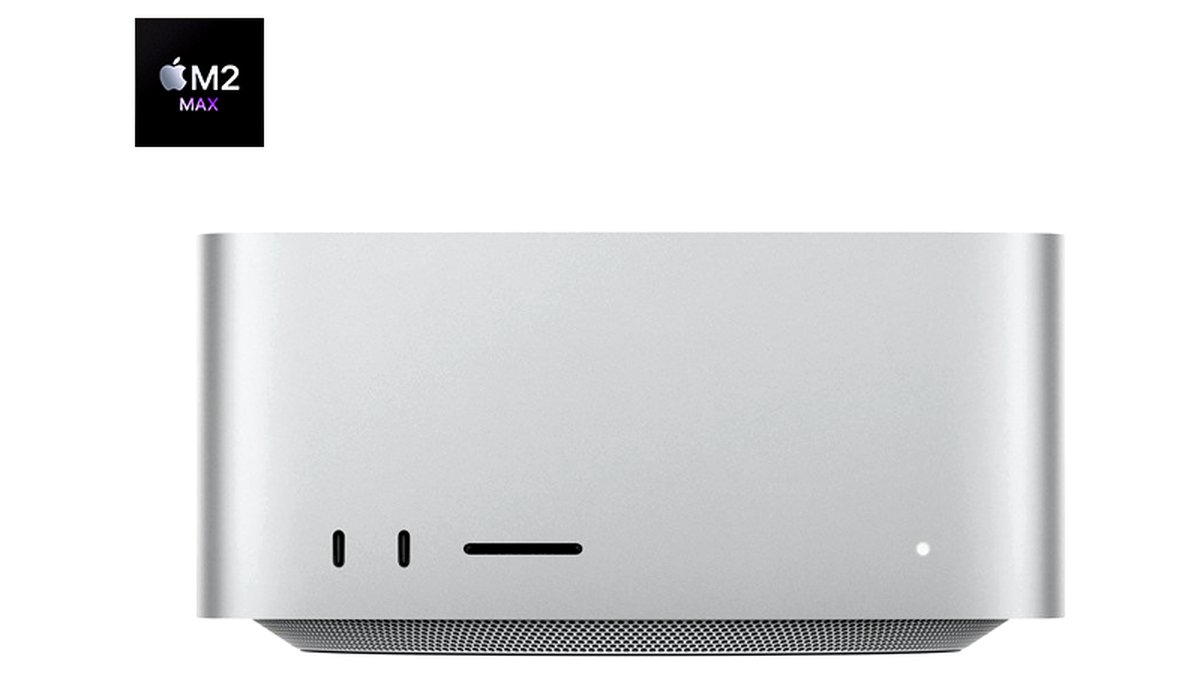
| High-end workstation-class desktop | Professional retouching, high-megapixel/medium-format files, heavy batch exports | High core-count CPU, 64GB+ RAM, higher-tier GPU, large fast NVMe storage | Significant cost step up; may exceed what casual editing workloads actually need |
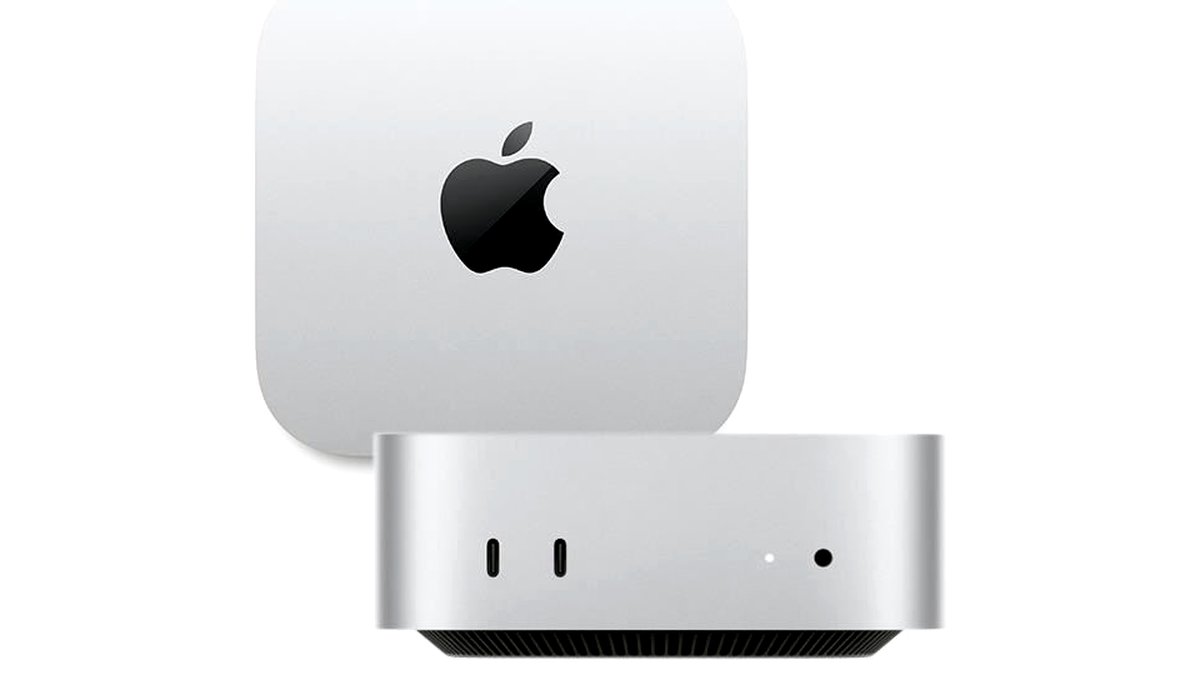
| Compact/mini desktop | Space-constrained setups, light editing needs | Efficient mobile-class or low-power CPU, limited RAM/GPU upgrade headroom | Thermal and upgrade limits restrict sustained heavy editing performance |
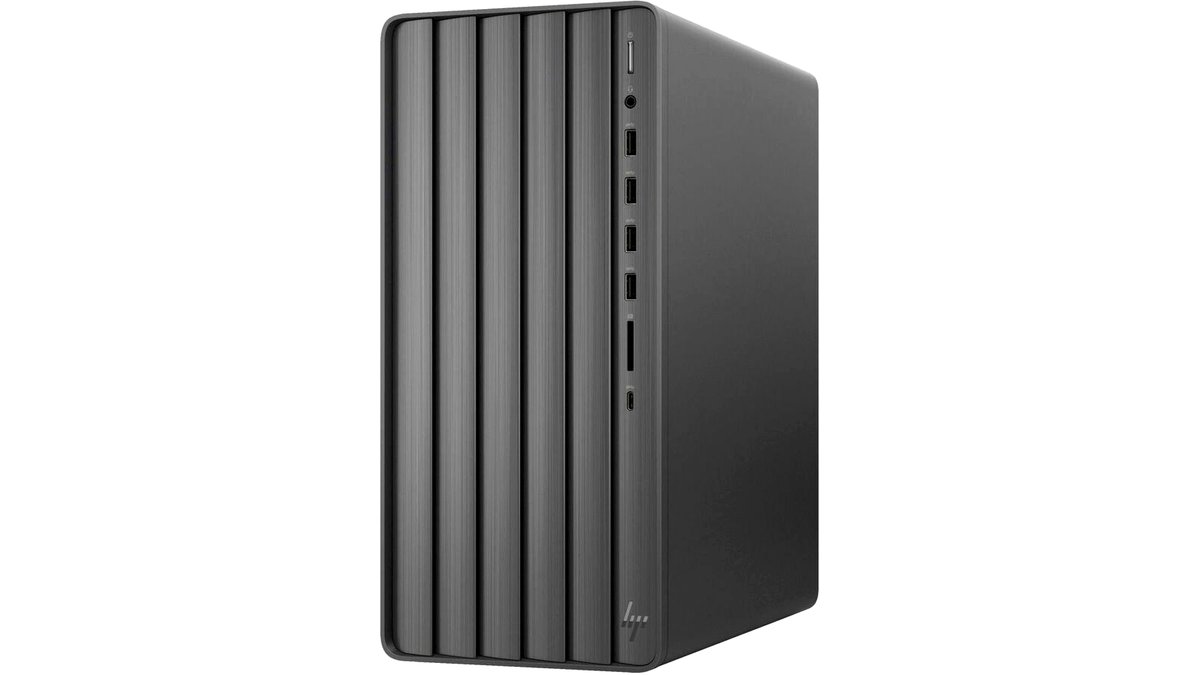
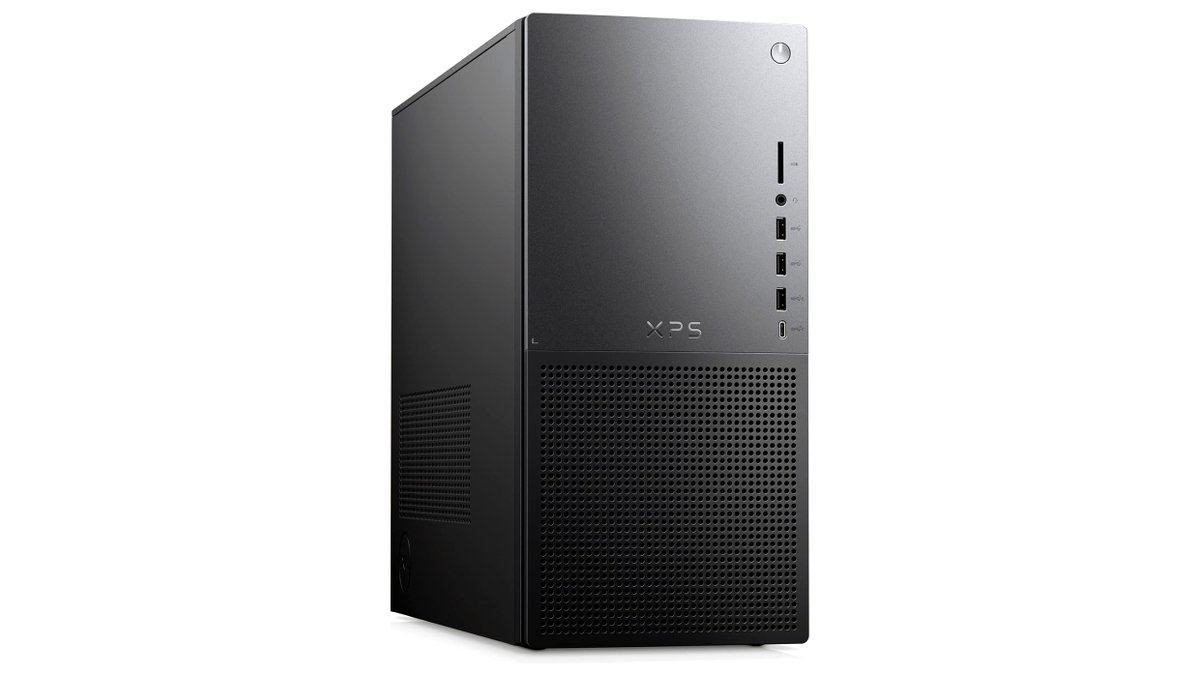
| Prebuilt “creator” desktop | Buyers wanting a balanced, pre-tuned system without custom building | Marketed specs balanced for content creation, often includes color-accurate monitor bundles | Component choices are fixed by the builder; less flexibility than custom-built |
CPU: Core Count vs. Clock Speed
Lightroom and Photoshop benefit from both high clock speed (for responsiveness in single-threaded tasks like brush strokes and tool interactions) and higher core counts (for batch exports, panorama/HDR merges, and background processing). A CPU with fewer but faster cores can feel snappier during active editing, while a CPU with more cores processes large export batches faster in the background. Current-generation mid-range desktop and workstation CPUs from the major manufacturers generally handle typical photo editing comfortably; buyers should check the specific CPU model’s current-generation status rather than assuming an older or discontinued chip still represents good value.
RAM: How Much Is Actually Enough
16GB is a practical minimum for modern photo editing software, but many users find Lightroom and Photoshop noticeably more responsive at 32GB, especially when working with multiple images open, large panoramas, or bigger brush/history cache settings. Professionals working with high-megapixel files, extensive layer stacks, or running photo editing alongside other memory-heavy software (like video editing or 3D tools) often benefit from 64GB or more. Adobe’s own system requirements pages list minimum and recommended RAM figures for current software versions, which is a more reliable reference point than general rules of thumb.
GPU: When It Matters and When It Doesn’t
A dedicated GPU speeds up canvas navigation, certain filters, and AI-assisted features such as subject selection, generative fill, and denoise tools in current Adobe software, and the maker’s own system requirements pages list specific VRAM minimums for these accelerated features. For buyers doing mostly basic RAW adjustments, cropping, and color correction without heavy AI tool use, a mid-tier GPU is generally sufficient, and the CPU remains the bigger factor in day-to-day responsiveness. For buyers leaning heavily on AI-based editing tools or working with very large canvases, a stronger GPU with more VRAM reduces lag during those specific operations.
Storage: Speed and Capacity for RAW Workflows
An NVMe SSD as the primary drive is the standard recommendation for photo editing, since it speeds up application launch, file opening, and scratch-disk performance (the temporary workspace Photoshop uses for large files) compared to a traditional hard drive. RAW files from current high-resolution cameras run 30-100+ megabytes each, and a serious photo library can reach into the terabytes quickly, so pairing a fast but smaller SSD for active projects with larger, slower storage (either a secondary hard drive or network storage) for archived files is a common, cost-effective setup. Keeping meaningful free space on the primary drive matters specifically because Photoshop’s scratch disk needs headroom to perform well on large files.
Pick-X-If Decision Table
| Situation | Pick this tier |
|---|---|
| Casual editing, mostly JPEGs or modest RAW batches | Entry-level desktop |
| Regular RAW editing, enthusiast or semi-pro workflow | Mid-range desktop with 32GB RAM and a mid-tier GPU |
| Professional retouching, high-megapixel files, heavy exports | High-end workstation-class desktop with 64GB+ RAM |
| Limited desk space, lighter editing needs | Compact/mini desktop, accepting its upgrade limits |
| Want a balanced system without custom building it | Prebuilt “creator” desktop from a reputable manufacturer |
Monitor and Color Accuracy Notes
The desktop’s internal specs matter less for final image quality than the attached display, since photo editing decisions (exposure, color, contrast) are made by eye on whatever monitor is connected. A display with accurate factory color calibration, wide color gamut coverage, and adequate resolution matters as much as or more than raw desktop horsepower for anyone doing color-critical work; a hardware calibration tool is a worthwhile add-on for professional or client-facing work regardless of which desktop tier is chosen.
Alternatives Worth Comparing
- High-performance laptop: Trades some sustained performance and upgrade flexibility for portability, suited to photographers who edit on location or travel frequently.
- Cloud-based editing/rendering: Some workflows offload heavy processing to cloud services, reducing the need for top-tier local hardware, though this depends on a reliable, fast internet connection.
- Custom-built desktop: Building from individual components instead of buying prebuilt can offer better price-to-performance for buyers comfortable with assembly and compatibility research.
Frequently Asked Questions
Do I need a powerful GPU for photo editing, or does the CPU matter more?
For most Lightroom and Photoshop workflows the CPU has a bigger overall impact on responsiveness, while the GPU accelerates specific features like canvas navigation and AI-based tools. Buyers who rely heavily on AI selection, generative fill, or denoise tools will notice the GPU’s impact more than someone doing mostly basic adjustments.
How much RAM do I actually need for Lightroom and Photoshop?
16GB works for basic use, but 32GB is a common sweet spot for smoother performance with larger files, batches, and layer stacks. Professionals working with very high-resolution files or heavy multitasking often move up to 64GB or more.
Is an SSD necessary, or will a hard drive work for photo editing?
An SSD, particularly NVMe, is strongly preferred because it speeds up file access and scratch-disk performance, both of which affect day-to-day responsiveness noticeably. A traditional hard drive can still work for archival storage of older, less-frequently-accessed files.
Should I buy a prebuilt desktop or build my own for photo editing?
A prebuilt desktop from a reputable manufacturer offers convenience and warranty support, while a custom build can offer better price-to-performance for buyers willing to research part compatibility themselves. Either approach works well as long as the CPU, RAM, and storage choices match the actual editing workload.
Does screen size or resolution on the monitor matter as much as the desktop specs?
Yes, color accuracy, resolution, and screen real estate on the attached monitor directly affect editing decisions and workflow efficiency, independent of the desktop’s internal hardware. Pairing a capable desktop with a weak or poorly calibrated monitor undercuts the benefit of strong internal specs.
How much storage space do I need for a growing photo library?
This depends on file format, resolution, and shooting volume, since current high-resolution RAW files commonly run well over 30 megabytes each and a busy shooter can accumulate terabytes over time. A common approach is pairing a smaller, fast SSD for active projects with larger secondary or network storage for the full archive.