Key takeaways
- Hardware RAID enclosures for photography archives compared: bay counts, interfaces, RAID modes, and the setup choices that keep decades of images safe.
A photography archive grows one shoot at a time until a single drive failure can erase years of work. A hardware RAID enclosure changes that calculation: it holds several drives in one box, spreads every image across them with parity or mirroring, and keeps the collection readable when one drive stops working. The choice that matters is not the brand on the front panel but the combination of bay count, connection speed, RAID modes, and how the array is managed when a drive needs replacing.
This guide is written for photographers who shoot in RAW, keep layered edits, and need a local archive that survives a drive failure without a trip to a data recovery lab. It covers working professionals with terabytes of client galleries, hobbyists consolidating years of folders from scattered portable drives, and studios that want one shared archive box on a desk. Each enclosure below was chosen from its Amazon listing title and specifications, with bay counts, interfaces, and RAID modes taken from the product pages.
Quick Picks
As an Amazon Associate we earn from qualifying purchases.
| Product | Best for | Key spec from title |
|---|---|---|
| OWC ThunderBay 4 | Fast Thunderbolt archive on a Mac workstation | Four-bay Thunderbolt 40Gb/s RAID enclosure, diskless |
| QNAP TR-004 | Simple hardware RAID set with physical switches | Four-bay USB Type-C hardware RAID enclosure, diskless |
| OWC Mercury Elite Pro Quad RAID 5 | USB-C archive with bundled array software | Four-bay USB 3.2 10Gb/s RAID 5 enclosure, diskless |
How to Choose
Bay count and drive sizes
Four bays is the practical baseline for a photography archive because it leaves room for RAID 5, which needs at least three drives and survives one failure. Two-bay boxes only allow mirroring, so they waste half of the installed capacity and leave no room to grow. Check whether the enclosure accepts both 3.5-inch hard drives and 2.5-inch solid-state drives, since many photographers mix large spinning drives for bulk storage with faster solid-state drives for active catalogs. Plan the total capacity around the drives you will actually buy, not the largest figure on the box, and leave one bay free if you expect the archive to keep growing.
RAID modes and how the array is managed
RAID 5 is the usual pick for an archive because it balances usable capacity with protection against a single failed drive, while RAID 1 mirrors everything and RAID 0 gives speed with no protection at all. Equally important is where the RAID logic lives: some enclosures carry a hardware controller with physical switches, while others rely on software bundled with the box. A hardware controller keeps the array independent of the computer, but a software-managed array ties the volume to that software and its licence. Before buying, confirm which modes the enclosure supports and whether changing modes later wipes the drives.
Connection speed and your computer
The interface decides how fast images move between the archive and your editing machine, and it must match a port your computer actually has. Thunderbolt delivers the highest throughput in this guide and suits Mac workstations with Thunderbolt ports, while USB 3.2 Gen 2 at 10Gb/s is fast enough for most archive work and fits a much wider range of laptops. A slower USB link still works for overnight copies and cold storage, but it turns large imports into long waits. Check the cable in the box as well, since a mismatched cable can silently cap the link at a lower speed.
Cooling, noise, and desk life
An archive enclosure runs for years, often beside the desk where you edit, so cooling and noise deserve the same attention as speed. Look for an aluminum body that sheds heat, a fan with a thermal sensor that speeds up only when the drives warm up, and trays that hold each drive firmly without rattling. Dust matters too: a box with blocked vents will run hotter and shorten drive life. Place the enclosure where air can move around it, keep it off carpet, and check the fan and drive health lights as part of a monthly routine rather than waiting for a warning.
The 3 Best Options
OWC ThunderBay 4

The ThunderBay 4 is the fastest enclosure in this guide and the natural pick for a Thunderbolt-equipped Mac that serves as the main editing station. Its four bays take 2.5-inch and 3.5-inch SATA drives, so a photographer can begin with large hard drives for bulk storage and add solid-state drives later for catalogs that need quicker access. Two Thunderbolt 3 ports support daisy-chaining, which keeps the desk tidy when a second box joins the archive. The aluminum body and included array software round out a unit built for a working studio rather than occasional use.
Specs
- Four bays for 2.5-inch and 3.5-inch SATA drives
- Two Thunderbolt 3 ports at 40Gb/s, plus DisplayPort 1.2
- Up to 1,527MB/s sustained performance
- User configurable in RAID 0, 1, 4, 5, and 1+0
- Includes SoftRAID Premium for creating and monitoring arrays
- Diskless enclosure; drives sold separately
- Aluminum enclosure, Mac and Windows compatible
Best for: Photographers on a Thunderbolt Mac who need the fastest local archive in this guide.
Watch out for: RAID is managed by the bundled SoftRAID software rather than an onboard hardware controller, so confirm the software fits your operating system and workflow before buying.
QNAP TR-004

The TR-004 is the simplest enclosure here, and that simplicity is exactly why it suits a photography archive. Its hardware RAID controller is set with physical DIP switches on the unit, so the array is configured once and then behaves like a single large volume with no extra software to install or renew. Four bays hold 3.5-inch SATA drives, lockable trays keep each drive seated, and status lights show the health of every bay at a glance. It also works as an expansion unit for a QNAP network storage system, which gives a studio a clear upgrade path if the archive outgrows direct-attached storage.
Specs
- Four bays for 3.5-inch SATA drives
- USB Type-C 3.2 Gen 1 host connection
- Hardware RAID controller with DIP switch settings
- RAID 0, 1, 5, 10, JBOD, and single-disk modes
- Lockable drive trays with status LEDs
- 120mm smart fan for cooling
- Diskless enclosure; drives sold separately
- Can also serve as expansion for a QNAP NAS
Best for: Photographers who want hardware RAID set with physical switches and no extra software.
Watch out for: Changing the RAID mode after drives are loaded can erase the array, so set the mode and label the unit before copying any images onto it.
OWC Mercury Elite Pro Quad RAID 5
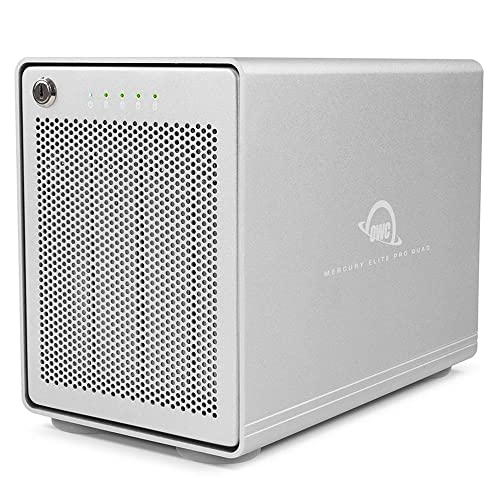
The Mercury Elite Pro Quad RAID 5 bundle is the middle ground in this guide: a four-bay USB-C enclosure with RAID 5 protection and array software included in the box. Its USB 3.2 Gen 2 link reaches up to 10Gb/s, which handles large RAW imports and catalog browsing without demanding a Thunderbolt port. The bundle ships configured for RAID 5 with three years of SoftRAID Premium, so the array can be monitored and managed from the computer it is attached to. Both USB-C and USB-A cables are included, which removes one common setup snag for photographers moving between machines.
Specs
- Four bays for 2.5-inch and 3.5-inch SATA drives
- USB 3.2 Gen 2 Type-C port at up to 10Gb/s
- Up to 947MB/s transfer speed
- RAID 0, 1, 4, 5, 10, and JBOD via bundled SoftRAID
- Three-year SoftRAID Premium included in the RAID 5 bundle
- USB-C and USB-A cables included
- Aluminum enclosure; 1-year OWC limited warranty
- Diskless enclosure; drives sold separately
Best for: Photographers who want a USB-C archive with RAID 5 protection and bundled array software.
Watch out for: This bundle ships diskless and configured for RAID 5, so budget for four matching drives and confirm your computer has a USB-C port that supports the full 10Gb/s link.
Which One Fits Your Situation
You edit on a Thunderbolt Mac and want maximum speed
Choose the OWC ThunderBay 4. Its dual Thunderbolt 3 ports deliver the highest throughput in this guide, and the four bays accept the mix of hard drives and solid-state drives that a working catalog demands. Daisy-chaining also means a second box can join later without taking another port on the computer.
You want the simplest set-and-forget archive
Choose the QNAP TR-004. The hardware controller and physical switches mean the array is configured once and then behaves like one large volume, with no software to install, renew, or relearn. Lockable trays and bay lights make it easy to spot a failing drive before it becomes a lost archive, and the quiet fan keeps it unobtrusive on the desk.
Your computer has USB-C but no Thunderbolt
Choose the OWC Mercury Elite Pro Quad RAID 5 bundle. Its 10Gb/s USB-C link is fast enough for large RAW imports, and the bundled SoftRAID Premium covers array setup and monitoring. The included USB-C and USB-A cables also cover older machines that only have full-size USB ports, so nothing extra is needed on arrival.
You expect the archive to keep growing
Choose the OWC ThunderBay 4 if you work on a Thunderbolt Mac, since daisy-chaining lets a second enclosure join the same desk setup. If you already run or plan to run a QNAP network storage system, the TR-004 is the better long-term pick because it can switch roles and serve as expansion storage for that system.
Common Mistakes
- Mixing drive sizes and speeds in one array, which forces the whole array to behave like its smallest or slowest drive.
- Choosing RAID 0 for an archive, since striping doubles the chance that one failed drive takes the entire collection with it.
- Treating RAID as a backup: RAID survives one drive failure, but it cannot undo accidental deletion, theft, fire, or a corrupted catalog file.
- Changing the RAID mode after loading drives, which can wipe the array and every image on it.
- Ignoring cooling and dust, leaving the enclosure in a closed cabinet or on carpet where heat shortens drive life.
Frequently Asked Questions
Is a RAID enclosure a backup by itself?
No. RAID protects against a single drive failing, but it does not protect against accidental deletion, ransomware, theft, fire, or a catalog file that becomes corrupted. Keep a second copy of the archive on separate media, preferably stored away from the desk, and check that the copy is readable at least a few times a year.
How many drives do I need for RAID 5?
RAID 5 needs at least three drives, and all three enclosures in this guide have four bays, so a typical setup uses three or four matched drives. With four drives, one drive worth of capacity holds parity data and the rest stores images, so the archive survives one drive failure. Buy matched drives of the same size and speed for the best result.
Can I mix drive brands and sizes in one enclosure?
It is possible, but it is rarely a good idea for an archive. An array built from mixed drives usually runs at the capacity of the smallest drive and the speed of the slowest one, which wastes the larger and faster drives. Matched drives also make replacement simpler: when one fails, any identical drive slots straight in.
Do these enclosures include hard drives?
No, all three enclosures in this guide ship diskless, so drives must be bought separately. That is an advantage for photographers, since it allows a free choice of drive brand, capacity, and speed. Budget for the drives alongside the enclosure, buy matched drives, and set the RAID mode before copying any images onto the new array.