Key takeaways
- Compare five 8-bay DAS enclosures for photography archives, with Thunderbolt and USB links, RAID and JBOD layouts, cooling, and capacity guidance.
A photography archive grows until a single external drive no longer holds the library, and that forces a real choice about how eight drives should connect to one computer. The decision is not only about raw capacity, since an enclosure that links over Thunderbolt moves huge RAW folders quickly, while a USB enclosure may fit more computers and leave more room in the setup for a second copy elsewhere. The choice also weighs hardware RAID against JBOD, because RAID can guard against one drive failing, while JBOD keeps every drive visible on its own for single-disk restores.
This guide is written for wedding photographers with decade-long client libraries, landscape shooters who return from trips with thousands of RAW files, and small studios that need one shared shelf of finished work beside the editing desk. The five enclosures below were chosen from names and specifications shown on Amazon product pages, with attention to bay count, connection type, RAID handling, and cooling.
Quick Picks
As an Amazon Associate we earn from qualifying purchases
| Product | Best for | Key spec from title |
|---|---|---|
| QNAP TL-D800C | A Mac or Windows archive where each drive stays visible on its own | 8-bay USB 3.2 Gen 2 JBOD enclosure |
| TerraMaster D8-332 | A Thunderbolt desk setup with hardware RAID for finished work | 8-bay Thunderbolt 3 hardware RAID enclosure |
| CENMATE Aluminum 8-Bay 10Gbps | A large library that needs fast USB transfers and active cooling | 8-bay USB 3.2 Gen 2 10Gbps enclosure |
| IO CREST SY-ENC50119 | A quiet corner archive with one switch per drive | 8-bay USB 3.0 enclosure with per-drive switches |
| Syba SY-ENC50129 | A USB4 workstation that moves very large folders in one pass | 8-bay USB4 40Gbps enclosure |
How to Choose
Match the Connection to the Computer
The link between enclosure and host sets the ceiling for every copy job, so check the ports on the editing machine before anything else. Thunderbolt 3 moves data at up to 40Gb/s and suits a MacBook Pro or a desktop with a Thunderbolt port, while USB4 reaches the same headline figure on newer machines and stays compatible with Thunderbolt 3 and 4 hosts. USB 3.2 Gen 2 at 10Gbps is plenty for overnight backups and browsing a Lightroom catalog, and USB 3.0 at 5Gbps still handles single-drive restores without fuss. A mismatch here wastes money, since a Thunderbolt enclosure plugged into a plain USB-C port will not deliver its headline speed.
Decide Between RAID and JBOD
RAID and JBOD answer different questions, and photographers should pick the one that matches how the archive will be used day to day. Hardware RAID 5 spreads files across several drives with parity, so one failed disk does not take the whole volume with it, and RAID 1 mirrors pairs of drives for a simpler safety net. JBOD presents each drive as its own letter or volume, which makes it easy to label one disk per year or per client and to hand a single drive to an assistant. Neither layout replaces a second copy, so keep an off-site backup no matter which layout the enclosure uses.
Plan Capacity by Year, Not by Drive
Eight bays look endless until a photographer counts how many gigabytes a single wedding season produces, and that is why capacity planning should work backward from the archive. A shooter who adds 4TB a year will fill 32TB in eight years, while a studio handling video alongside stills can cross that line far sooner. Enclosures in this guide accept drives up to 20TB or 24TB each, which puts the total between 160TB and 192TB, so the practical limit is the drives chosen rather than the box itself. Leave at least one bay free when the enclosure arrives, because a full shelf leaves no room for a rebuild or a new year of work.
Weigh Cooling, Noise, and Desk Space
An eight-drive enclosure runs for hours during a backup, and heat is the quiet enemy of a long-lived archive, so cooling deserves the same attention as speed. Dual fans and an aluminum shell move warm air away from the disks, while a steel housing adds mass that damps vibration from eight spinning drives. Fan noise matters when the enclosure sits beside an editing desk, and some units let the fan follow a thermal sensor or switch between speed levels. Measure the desk before ordering, since these towers are taller and deeper than a single external drive, and leave space behind the unit for cables and airflow.
The 5 Best Options
QNAP TL-D800C 8-Bay USB 3.2 DAS Enclosure
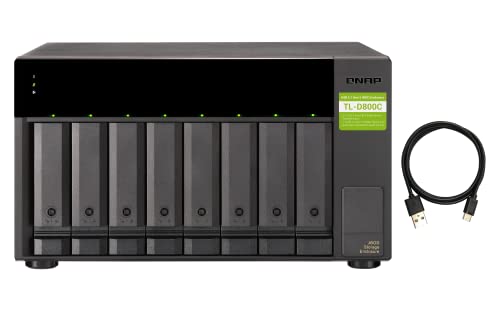
The TL-D800C takes a calm, flexible approach to archive storage by giving each of its eight bays a direct path to the host over USB 3.2 Gen 2, which keeps the setup simple for photographers who organize work by year or by client. Its JBOD layout means one drive can hold 2024 weddings while another holds travel work, and pulling a single disk for a restore does not disturb the rest of the shelf. QNAP JBOD Manager software adds drive health monitoring, so a photographer can spot a failing disk before it takes a folder of irreplaceable frames with it.
Specs
- 8 bays for 3.5-inch and 2.5-inch SATA HDDs and SSDs
- USB 3.2 Gen 2 Type-C connection
- JBOD layout with each drive shown separately
- SATA 6Gb/s drive interface
- QNAP JBOD Manager software for drive monitoring
- Windows, macOS, Linux, and Ubuntu host support
Best for: Photographers who want every drive visible on its own and organized by year or client.
Watch out for: JBOD gives no parity protection, so a second copy of the archive stays essential.
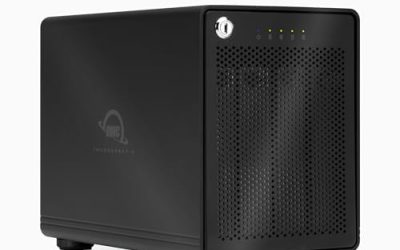
TerraMaster D8-332 Thunderbolt 3 8-Bay DAS Enclosure
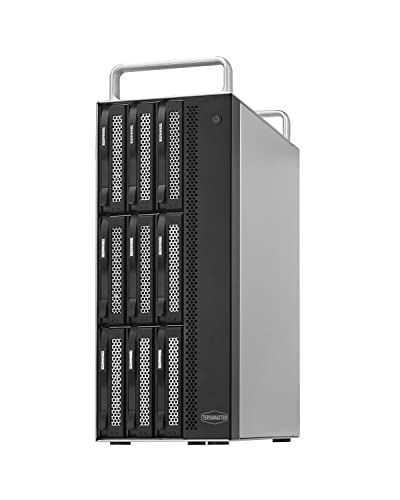
The D8-332 is the Thunderbolt pick in this roundup, and its hardware RAID chip does the parity work inside the box instead of leaning on the host computer. That matters when a photographer is copying a full card dump while Lightroom builds thumbnails, since the enclosure keeps its own pace without borrowing processor time from the edit. Two Thunderbolt 3 ports allow daisy-chaining, so a second enclosure or a display can sit on the same chain, and the diskless design lets the buyer choose drives that match the archive rather than accepting a bundled set.
Specs
- 8 bays for 3.5-inch SATA HDDs and 2.5-inch SATA HDDs and SSDs
- Thunderbolt 3 connection at 40Gb/s with two ports
- Hardware RAID 0, 1, 5, 10, and JBOD
- Up to 160TB total capacity with 20TB drives
- Up to 1600MB/s read speed and up to 1380MB/s write speed
- Daisy-chain up to six units
- Diskless design, drives sold separately
Best for: A Thunderbolt editing desk where hardware RAID guards finished work and large folders move fast.
Watch out for: Thunderbolt only, so a computer without a Thunderbolt port cannot use this enclosure at full speed.
CENMATE Aluminum 8-Bay 10Gbps DAS Enclosure

The CENMATE enclosure pairs a 10Gbps USB 3.2 Gen 2 link with an aluminum shell and two fans, a combination that suits long backup sessions where heat builds up across eight spinning disks. Tool-free trays make drive swaps quick when a bay needs a fresh disk, and the unit can daisy-chain up to three enclosures for a combined 480TB, which gives a growing studio a path forward without replacing the first box. Its listing states a 1GB file moves in 3 to 5 seconds over the USB 3.2 link, a useful yardstick for judging how a folder of RAW files will behave during an import.
Specs
- 8 bays for 2.5-inch and 3.5-inch SATA HDDs and SSDs
- USB 3.2 Gen 2 connection up to 10Gbps with USB-A and USB-C cables
- Up to 160TB total capacity with 20TB per drive
- Tool-free hot-swappable drive trays
- Dual 2.9-inch cooling fans in an aluminum housing
- Daisy-chain up to three devices for 480TB combined
- UASP support for faster transfers
Best for: A large photo library that needs fast USB transfers, active cooling, and room to add a second enclosure later.
Watch out for: Fan sound runs around 40 to 50 decibels, so keep it off the editing desk if fan hum distracts during quiet work.
IO CREST SY-ENC50119 8-Bay USB 3.0 DAS Enclosure

The SY-ENC50119 is the most hands-off enclosure here, and its appeal lies in giving each drive its own power switch on the front panel. A photographer can spin up only the disk that holds a requested shoot, leaving the other seven dark and cool, which suits an archive that gets visited a few times a week rather than every hour. Its steel housing adds heft that steadies eight drives, and a thermal sensor fan can run on its own or across three manual speed levels. There is no RAID and no network function, so the unit does one job and does it plainly.
Specs
- 8 bays for 2.5-inch and 3.5-inch SATA HDDs and SSDs
- USB 3.0 connection up to 5Gbps with UASP
- Up to 24TB per drive, 192TB total capacity
- Independent power switch for each drive
- Steel housing
- Thermal sensor fan with three speed levels
- No RAID or network function, drives shown individually
Best for: A low-traffic archive where only one or two drives need to spin up at a time.
Watch out for: USB 3.0 at 5Gbps is the slowest link in this guide, so full-library copies take longer than on the Thunderbolt and USB4 picks.
Syba SY-ENC50129 8-Bay USB4 40Gbps DAS Enclosure

The SY-ENC50129 brings the newest link in this guide, USB4 at 40Gbps, to an eight-bay shelf that also works with Thunderbolt 3, 4, and 5 hosts. That breadth matters for a photographer whose next computer is still undecided, since the same enclosure can follow a move from one machine to another without a change of cable standard. Removable trays and a power button per drive make it easy to swap a full disk for a fresh one, and support for drives up to 24TB each puts the total ceiling at 192TB. It is a straightforward JBOD-style shelf with a very fast door.
Specs
- 8 bays for 2.5-inch and 3.5-inch SATA HDDs and SSDs
- USB4 Type-C connection up to 40Gbps
- Compatible with Thunderbolt 3, 4, and 5 hosts
- Up to 24TB per drive
- Removable drive trays
- Individual power button for each drive
Best for: A USB4 workstation that needs the fastest link here and a clear upgrade path to a newer computer.
Watch out for: A host without USB4 or Thunderbolt will not reach the headline 40Gbps figure, so check the computer’s ports first.
Which One Fits Your Situation
You Shoot Weddings and Need One Drive Per Season
Pick the QNAP TL-D800C, because its JBOD layout lets one drive hold a single wedding season while the rest of the shelf stays untouched. Label each disk by year, keep a matching backup drive off-site, and the archive stays readable even if the enclosure itself is ever replaced. The USB link works with almost any editing computer, so an assistant’s laptop can read a disk without special hardware.
Your Editing Desk Runs on Thunderbolt and Time Is Short
Pick the TerraMaster D8-332, because its hardware RAID 5 guards finished galleries while its Thunderbolt 3 link moves card dumps quickly. The two ports leave room for a display or a second enclosure on the same chain, and the diskless design means the drives can match the studio’s existing stock. Keep a second copy elsewhere, since RAID guards against a failed disk rather than a lost building.
Your Library Keeps Growing and the Desk Is Warm
Pick the CENMATE Aluminum 8-Bay 10Gbps enclosure, because its dual fans and aluminum shell handle long backup sessions better than a sealed plastic box. The 10Gbps USB link is fast enough for catalog browsing and overnight copies, and daisy-chaining up to three units gives the archive a clear path to 480TB. Put it on the floor or a side table if fan hum bothers quiet editing.
You Want the Fastest USB Link for a New Computer
Pick the Syba SY-ENC50129, because its USB4 40Gbps connection is the quickest link in this guide and it also works with Thunderbolt 3, 4, and 5 hosts. A photographer moving to a newer laptop keeps the same enclosure, the same trays, and the same drives, which removes one more migration from an already busy upgrade. Per-drive power buttons let unused disks rest while one folder is pulled for a client.
Common Mistakes
- Buying a Thunderbolt enclosure for a computer that only has plain USB-C ports, then wondering why transfers feel ordinary.
- Filling all eight bays on day one, leaving no room for a rebuild or for next year’s shoots.
- Treating RAID as a backup, when a single enclosure still holds only one copy of the archive.
- Mixing drive sizes and ages without a plan, which makes rebuilds slower and labels harder to trust.
- Placing the enclosure in a closed cabinet with no airflow, then blaming the drives when heat shortens their life.
Frequently Asked Questions
How many drives does an 8-bay DAS enclosure hold?
An 8-bay DAS enclosure holds eight SATA drives, each in its own tray or slot, and the total capacity depends on the size of the drives fitted. With 20TB drives the total reaches 160TB, while 24TB drives lift it to 192TB. Diskless models arrive empty, so the drives are chosen separately and the final capacity is set by that choice.
Is a DAS enclosure better than a NAS for a photography archive?
A DAS enclosure suits a single editing computer, because it connects directly over USB or Thunderbolt and avoids network setup entirely. A NAS suits several people sharing files over a network, but it adds configuration work and depends on network speed. Many photographers keep a DAS beside the desk for active work and a separate backup copy elsewhere.
Do I need RAID for my photo archive?
RAID helps when one drive fails, since RAID 5 can rebuild the volume from parity and RAID 1 mirrors pairs of drives. JBOD keeps each drive separate and makes single-disk restores simple. Neither layout replaces a second copy, so pair either choice with an off-site backup and treat RAID as protection against a failed disk rather than a full safety net.
Can I mix SSDs and HDDs in one 8-bay enclosure?
Most enclosures in this guide accept both 2.5-inch and 3.5-inch SATA drives, so an SSD can sit beside HDDs in the same shelf. A common layout puts a fast SSD in one bay for the active catalog and large HDDs in the rest for the archive. Check the listing for each model, since some RAID modes work best with matched drives.